User Credential Update Errors
When updating existing users with new credentials through keycloak-config-cli, various errors can occur depending on password policies, credential types, and update strategies. Understanding how credential updates work and common failure scenarios is essential for reliable user management.
Related issues: #904
The Problem
Users encounter credential update errors when modifying existing users because: - Updating credentials triggers password policy validation - Credential type mismatches cause failures - Multiple credential entries can conflict - Temporary credential flags behave unexpectedly during updates - Password history policies may reject the new password - Required actions may not be properly set or cleared - It's unclear whether credentials are replaced or appended
Understanding Credential Updates
How Keycloak Handles Credential Updates
When updating user credentials:
- Credential Replacement
- New credentials replace existing ones of the same type
- Old credentials are removed
-
Password history is updated
-
Password Policy Validation
- All password policies apply to credential updates
- Password history is checked
-
Complexity requirements must be met
-
Temporary Password Behavior
- Setting
temporary: truerequires password change on next login - Setting
temporary: falseallows immediate use - Updating temporary flag alone doesn't change the password
Common Scenarios & Pitfalls
1. Password Policy Violation
Problem: The new password doesn't meet the realm's password policy requirements.
Attempting to set weak password:
{
  "users": [
    {
      "username": "test.user",
      "credentials": [
        {
          "type": "password",
          "value": "weak",
          "temporary": false
        }
      ]
    }
  ]
}
Error Message:
Failed to update user 'test.user'
Error: Password policy violation - Password must be at least 12 characters

2. Credential Type Mismatch
Problem: Attempting to set credentials of a type not supported for direct import (e.g., OTP). keycloak-config-cli primarily supports password type for user imports.
Problematic Configuration:
{
  "users": [
    {
      "username": "existing.user",
      "credentials": [
        {
          "type": "otp",
          "value": "123456",
          "temporary": false
        }
      ]
    }
  ]
}
Error Message:
3. Multiple Credential Conflicts
Problem: Specifying multiple password credentials for a single user.
Configuration:
{
  "users": [
    {
      "username": "existing.user",
      "credentials": [
        {
          "type": "password",
          "value": "Password123",
          "temporary": true
        },
        {
          "type": "password",
          "value": "DifferentPassword456",
          "temporary": false
        }
      ]
    }
  ]
}
Result: Only the last credential in the array is applied; previous ones are ignored.
4. Empty Credentials Array
Problem: Providing an empty credentials array ([]).
Configuration:
Result: Warning! All existing credentials for the user are removed. The user will be unable to log in until a new password is set. If you wish to update a user without touching their credentials, simply omit the credentials field entirely.
Solutions
Solution 1: Validate Against Password Policy
Ensure new passwords meet all policy requirements before import.
Password policy configuration (JSON):
{
  "realm": "master",
  "passwordPolicy": "length(12) and upperCase(1) and lowerCase(1) and digits(1) and specialChars(1)"
}
Compliant user credential update (JSON):
{
  "realm": "master",
  "users": [
    {
      "username": "test.user",
      "email": "test@example.com",
      "enabled": true,
      "credentials": [
        {
          "type": "password",
          "value": "ComplexP@ssw0rd123",
          "temporary": true
        }
      ]
    }
  ]
}
YAML Alternative:
realm: master
users:
  - username: test.user
    email: test@example.com
    enabled: true
    credentials:
      - type: password
        value: "ComplexP@ssw0rd123"
        temporary: true
Result
User credentials successfully updated with a password that meets all policy requirements. The temporary flag is set, requiring the user to change password on next login.

Benefits: - Import succeeds - User can log in immediately (or is forced to change if temporary) - Complies with security requirements
Solution 2: Use Temporary Passwords for Updates
Scenario: Force users to change password after administrative update.
{
  "users": [
    {
      "username": "existing.user",
      "email": "user@example.com",
      "enabled": true,
      "credentials": [
        {
          "type": "password",
          "value": "TempResetP@ss123",
          "temporary": true
        }
      ],
      "requiredActions": ["UPDATE_PASSWORD"]
    }
  ]
}
Benefits: - User must change password on next login - Secure password reset workflow - Admin doesn't need to know user's permanent password
Solution 3: Update User Without Changing Credentials
Scenario: Modify user attributes without touching password.
{
  "users": [
    {
      "username": "existing.user",
      "email": "newemail@example.com",
      "firstName": "Updated",
      "lastName": "Name",
      "enabled": true
    }
  ]
}
Result: - User attributes updated - Password remains unchanged - No credential validation errors
Solution 4: Clear Required Actions After Update
Problem: User has old required actions that conflict with new credentials.
Solution:
{
  "users": [
    {
      "username": "existing.user",
      "credentials": [
        {
          "type": "password",
          "value": "NewP@ssword123",
          "temporary": false
        }
      ],
      "requiredActions": []
    }
  ]
}
Result: - Password updated - Required actions cleared - User can log in without additional steps
Solution 5: Use Password Reset Instead of Update
Scenario: Need to reset password without importing full user config.
Use Keycloak Admin API directly:
# Get user ID
USER_ID=$(curl -s "http://localhost:8080/admin/realms/master/users?username=existing.user" \
  -H "Authorization: Bearer $TOKEN" | jq -r '.[0].id')

# Reset password
curl -X PUT "http://localhost:8080/admin/realms/master/users/$USER_ID/reset-password" \
  -H "Authorization: Bearer $TOKEN" \
  -H "Content-Type: application/json" \
  -d '{
    "type": "password",
    "value": "NewP@ssword123",
    "temporary": true
  }'
Credential Update Patterns
Pattern 1: Administrative Password Reset
{
  "users": [
    {
      "username": "locked.user",
      "enabled": true,
      "credentials": [
        {
          "type": "password",
          "value": "AdminResetP@ss123",
          "temporary": true
        }
      ],
      "requiredActions": ["UPDATE_PASSWORD", "VERIFY_EMAIL"]
    }
  ]
}
Use case: Admin resets password for locked-out user.
Pattern 2: Service Account Credential Update
{
  "users": [
    {
      "username": "api-service",
      "serviceAccountClientId": "backend-api",
      "enabled": true
    }
  ]
}
Use case: Service accounts don't have password credentials.
Pattern 3: Bulk Password Update
{
  "users": [
    {
      "username": "user1",
      "credentials": [
        {
          "type": "password",
          "value": "${USER1_NEW_PASSWORD}",
          "temporary": true
        }
      ]
    },
    {
      "username": "user2",
      "credentials": [
        {
          "type": "password",
          "value": "${USER2_NEW_PASSWORD}",
          "temporary": true
        }
      ]
    }
  ]
}
With environment variables:
export USER1_NEW_PASSWORD="User1NewP@ss123"
export USER2_NEW_PASSWORD="User2NewP@ss123"

java -jar keycloak-config-cli.jar \
  --import.var-substitution.enabled=true \
  --import.files.locations=users-update.json
Password Policy Compatibility
Common Password Policies
{
  "passwordPolicy": "length(12) and upperCase(1) and lowerCase(1) and digits(1) and specialChars(1) and notUsername and passwordHistory(5)"
}
Valid Password Examples
For the above policy:
| Password | Valid | Reason |
|---|---|---|
Admin123! |
No | Too short (< 12 characters) |
adminpassword123! |
No | No uppercase letter |
ADMINPASSWORD123! |
No | No lowercase letter |
AdminPassword! |
No | No digit |
AdminPassword123 |
No | No special character |
AdminP@ssword123 |
Yes | Meets all requirements |
ComplexP@ss123 |
Yes | Meets all requirements |
Complete Configuration Examples
Example 1: Secure Password Update
{
  "realm": "production",
  "enabled": true,
  "passwordPolicy": "length(14) and upperCase(1) and lowerCase(1) and digits(2) and specialChars(1) and notUsername and passwordHistory(12)",
  "users": [
    {
      "username": "john.doe",
      "email": "john.doe@company.com",
      "firstName": "John",
      "lastName": "Doe",
      "enabled": true,
      "emailVerified": true,
      "credentials": [
        {
          "type": "password",
          "value": "SecureTemp@Pass2024!",
          "temporary": true
        }
      ],
      "requiredActions": ["UPDATE_PASSWORD", "CONFIGURE_TOTP"]
    }
  ]
}
Example 2: Update Multiple Users
{
  "realm": "master",
  "users": [
    {
      "username": "user1",
      "email": "user1@example.com",
      "enabled": true,
      "credentials": [
        {
          "type": "password",
          "value": "TempP@ssword123!",
          "temporary": true
        }
      ]
    },
    {
      "username": "user2",
      "email": "user2@example.com",
      "enabled": true,
      "credentials": [
        {
          "type": "password",
          "value": "TempP@ssword456!",
          "temporary": true
        }
      ]
    },
    {
      "username": "user3",
      "email": "user3@example.com",
      "enabled": false
    }
  ]
}
Example 3: Conditional Credential Update
{
  "realm": "master",
  "users": [
    {
      "username": "active.user",
      "enabled": true,
      "credentials": [
        {
          "type": "password",
          "value": "NewP@ssword123",
          "temporary": false
        }
      ]
    },
    {
      "username": "inactive.user",
      "enabled": false
    }
  ]
}
5. Not Setting Temporary Flag
Problem: Omitting the temporary field in the credentials array.
Result: Keycloak defaults to temporary: false. The user can log in with the new password immediately and is not forced to change it.
Solution: Always specify the temporary flag explicitly to ensure the desired security workflow.
Best Practices
1. Use Temporary Passwords for Resets
Force users to change their password after an administrative update. This is the most secure workflow.
Best Practice Configuration (YAML):
users:
  - username: "existing.user"
    enabled: true
    credentials:
      - type: "password"
        value: "${TEMP_PASSWORD}"
        temporary: true
    requiredActions:
      - "UPDATE_PASSWORD"
2. Separate Creation from Updates
To avoid password history issues on repeated imports, consider setting the password only during the initial user creation and omitting the credentials field in subsequent configuration updates.
3. Use Environment Variables
Never hardcode passwords in your configuration files. Use keycloak-config-cli's variable substitution feature.
export TEMP_PASSWORD="ComplexP@ssw0rd123!"
java -jar keycloak-config-cli.jar --import.var-substitution.enabled=true ...
Verifying in Keycloak
After applying credential updates, you can verify the state in the Keycloak Admin Console:
-
Check Password Policy: Navigate to Realm Settings > Policies > Password Policy to ensure your requirements are set correctly.
-
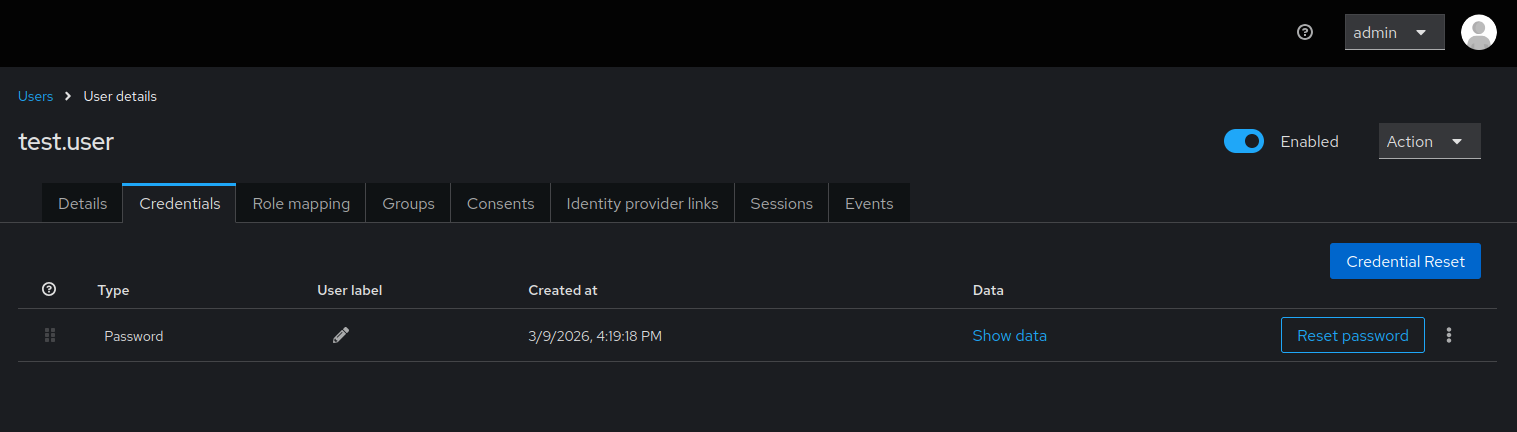
Verify User Credentials: Navigate to Users, select the user, and click the Credentials tab.
- You can see the number of stored passwords in the history.
- You can verify if "Temporary" is set for the current password.
Troubleshooting
"Invalid password: must not be equal to any of last N passwords"
- Cause: You hit the password history limit.
- Solution: Change the password value, or set
temporary: trueif you want to reuse the same value for a reset (Note: Keycloak behavior on temporary password reuse can vary by version).
"Password policy violation"
- Cause: The password doesn't meet complexity or length requirements.
- Solution: Check the Password Policy in Realm Settings and update your configuration to match.
See Also
- Password History Limit Errors - Detailed guide on handling history conflicts.
- OTP Policy Configuration - How to configure realm-wide MFA policies.
- User Partial Update - Managing user attributes without affecting credentials.